Migrate from the legacy LinkedIn connection request to the new Send Connection action
Written By John Bromley
Last updated 2 months ago
Here's how to update a sequence that still uses the old connection request setup, and why it's worth doing.
What changed
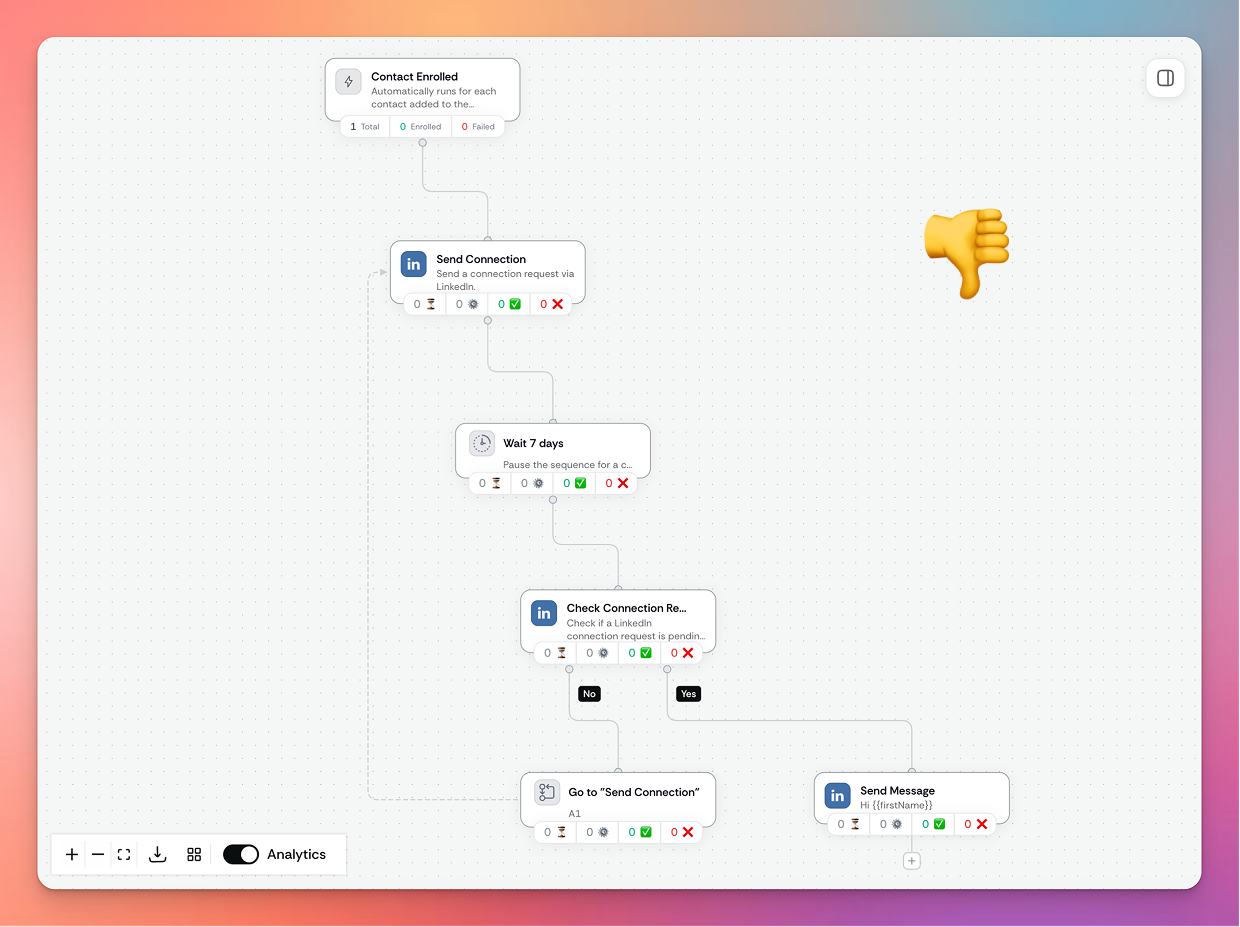
Sendr used to need three separate steps to send a LinkedIn connection request and wait for it to be accepted: Send Connection (Legacy), a Wait step, and a Check Connection Request condition that looped back to check again if the contact hadn't responded yet.
The new Send Connection action does all of this in a single step. It sends the request, then listens for a webhook the moment the contact accepts or declines, and branches your sequence automatically: Yes continues straight to your next step, No goes to a Hold, which you can leave as-is or build on later. There's no loop, no repeated checking, and no waiting on a fixed schedule to find out what happened.
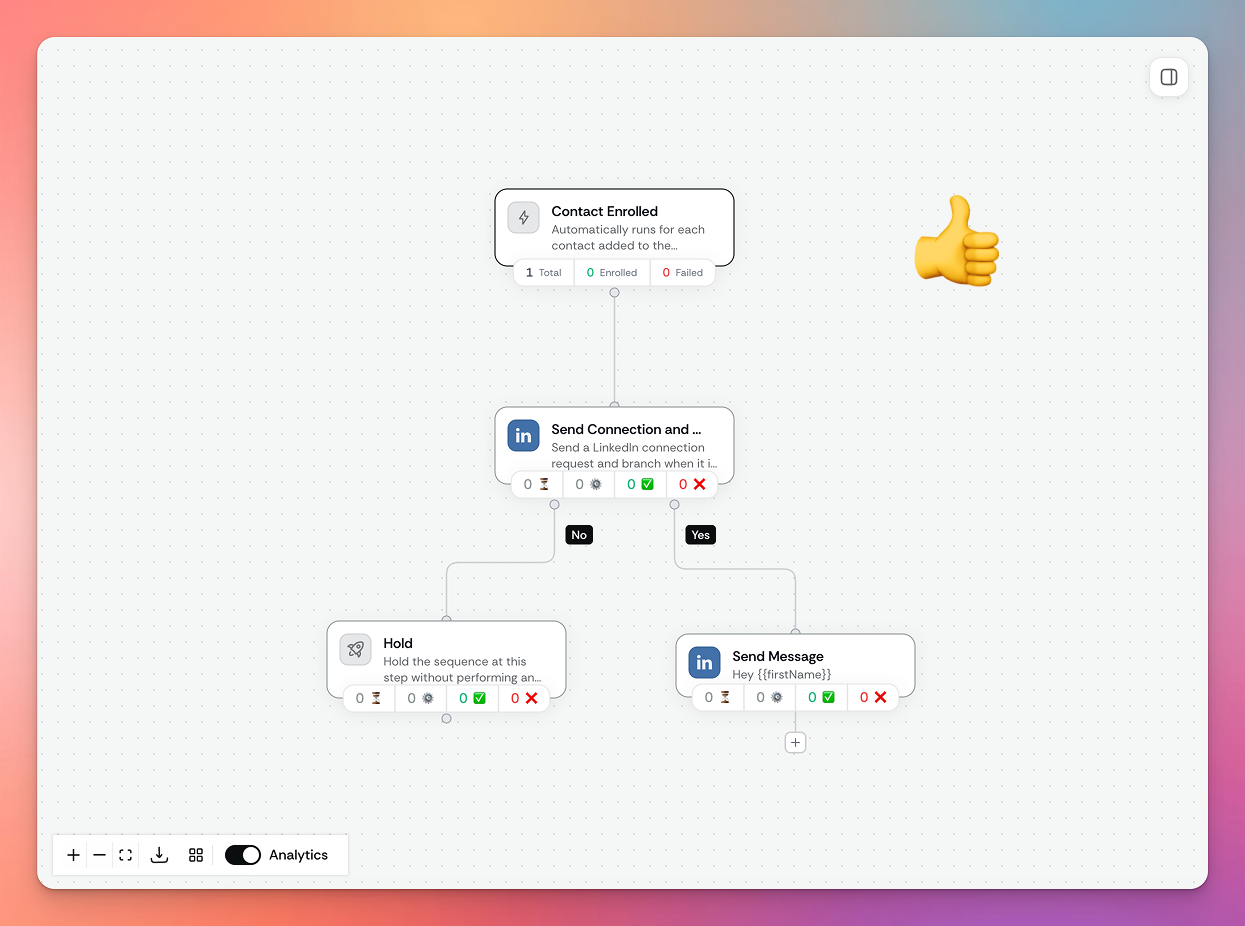
Send Connection also has a withdrawal timeframe built in. If a contact doesn't respond within that window, Sendr automatically withdraws the request so it stops sitting in your pending list, and the contact follows the No branch. The default is 30 days, and you can change it to whatever suits your outreach.
Why update your sequence
Faster sequences. Contacts move to the next step the moment they respond, not on your next scheduled check.
Fewer connection checks. LinkedIn limits how many connection status checks you can make. Send Connection doesn't need to check at all, since it's notified automatically.
Cleaner pending requests. Requests that are never accepted or declined get withdrawn automatically instead of sitting there indefinitely.
Simpler to build. One action instead of three, with no loop to configure.
How to migrate a sequence
Open the sequence you want to update.
Find the legacy steps: Send Connection (Legacy), the Wait step after it, and the Check Connection Request condition (including any Go to Step loop back).
Delete the Check Connection Request condition and its loop.
Delete the Wait step.
Delete the Send Connection (Legacy) step.
Add the new Send Connection action in its place, and set your withdrawal timeframe.
Connect the Yes branch to your next step (for example, your LinkedIn message), and optionally build on the No/Hold branch if you want to follow up with contacts who didn't connect.
Good to know
Once you remove Send Connection (Legacy) from a sequence, you can't add it back — it's hidden from the builder, so every new connection step you add from now on will be Send Connection.
Check Connection Request is still available as a standalone action if you want to check connection status for another reason, but it's no longer needed as part of sending and waiting on a connection request.
Contacts who already have a pending request sent under the legacy steps carry on under the old logic until that request is accepted, declined, or you update the sequence.
Was this helpful?
Still need help? Ask the team