How to send Clearcue signals into a Sendr campaign
Connect Clearcue to the Clearcue trigger in your Sendr campaign so new people matching your signals enter your sequence automatically.
Written By Ana Gzryan
Last updated 42 minutes ago
Clearcue spots buying signals, such as someone engaging with your LinkedIn posts or starting a new role. Connect it to the Clearcue trigger in your Sendr campaign and every new person who matches your Clearcue list is added to your sequence automatically.
Clearcue tracks 50+ signals. See the full library here.
This guide walks you through the full setup, from creating your first signal to seeing contacts arrive in Sendr.
Before you start
You'll need:
A Clearcue account. If you don't have one yet, sign up for free here,
A campaign in the Sendr sequencer that you want new contacts to enter.
How it works
Signals are what Clearcue watches for, for example people who like or comment on your posts, or people who announce a new job. Signals run on a schedule rather than in real time. Most run once a day, and a few run weekly.
Lists decide who you actually want to reach. A list combines one or more signals with filters such as job title or country. Lists are live: Clearcue keeps adding people to them as new signals are detected.
The Sendr webhook is connected to a list, not to a signal. Each time a new person joins the list, Clearcue sends that person to Sendr and they enter your campaign. If someone is already on the list and triggers another signal, they won't be sent again.
Step 1: Add the Clearcue trigger and copy your webhook URL
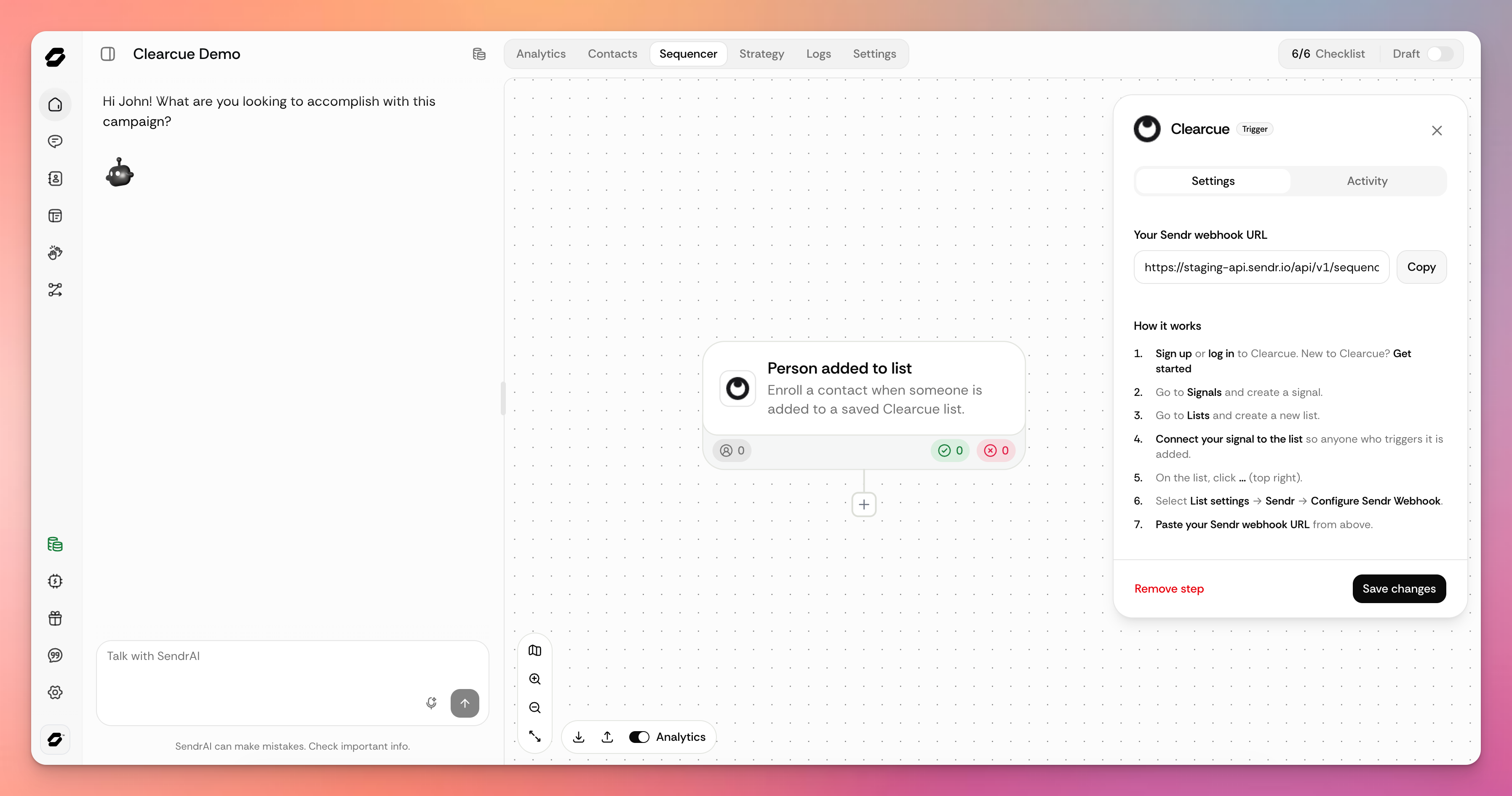
Open your campaign in the sequencer.
Add the Clearcue trigger.
On the Settings tab, find Your Sendr webhook URL and click Copy.
Click Save changes.
Step 2: Create a signal in Clearcue
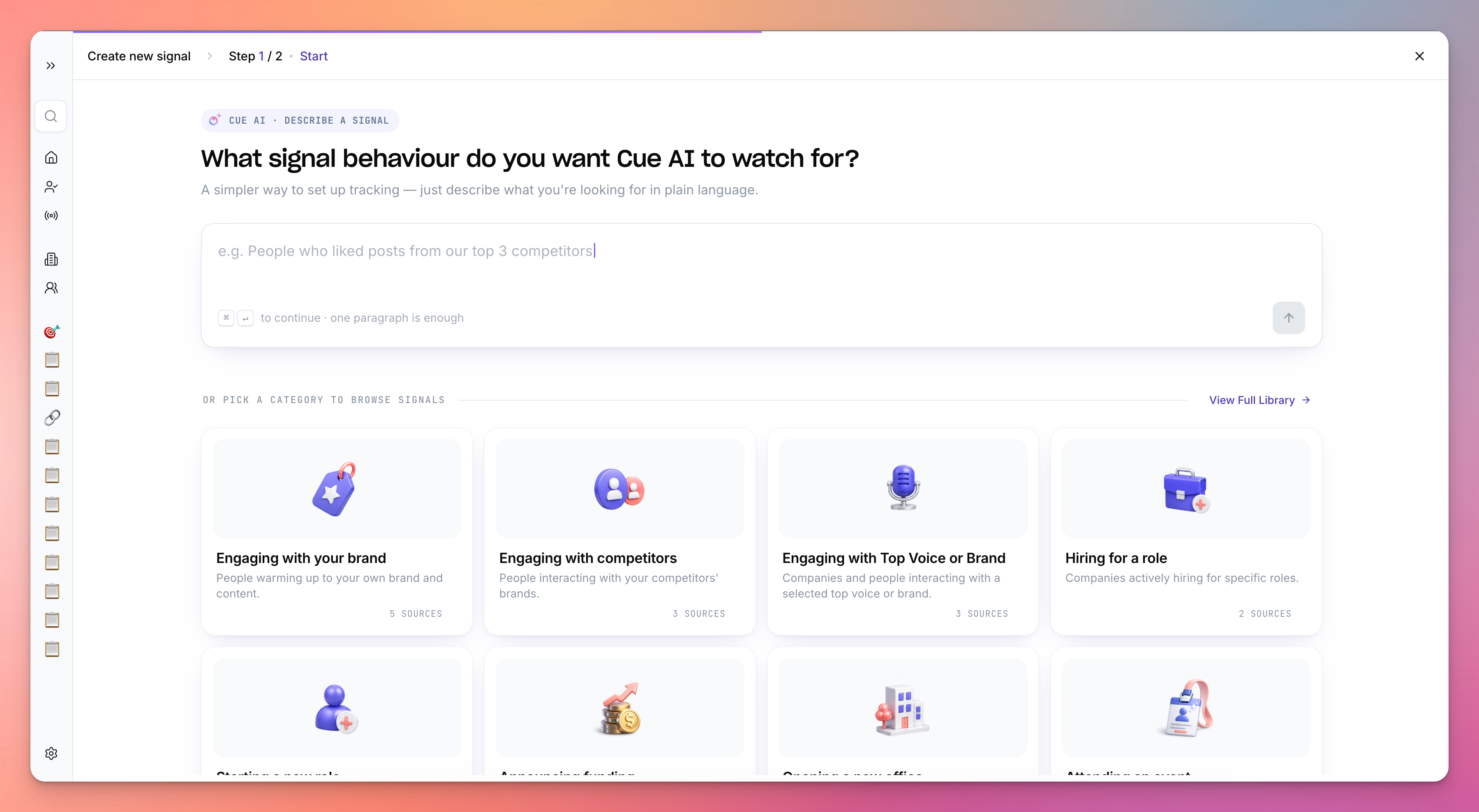
Log in to Clearcue and go to Signals.
Create a new signal. You can pick one from the signal library, or describe what you're looking for in the text box at the top
Step 3: Create a list and connect your signal
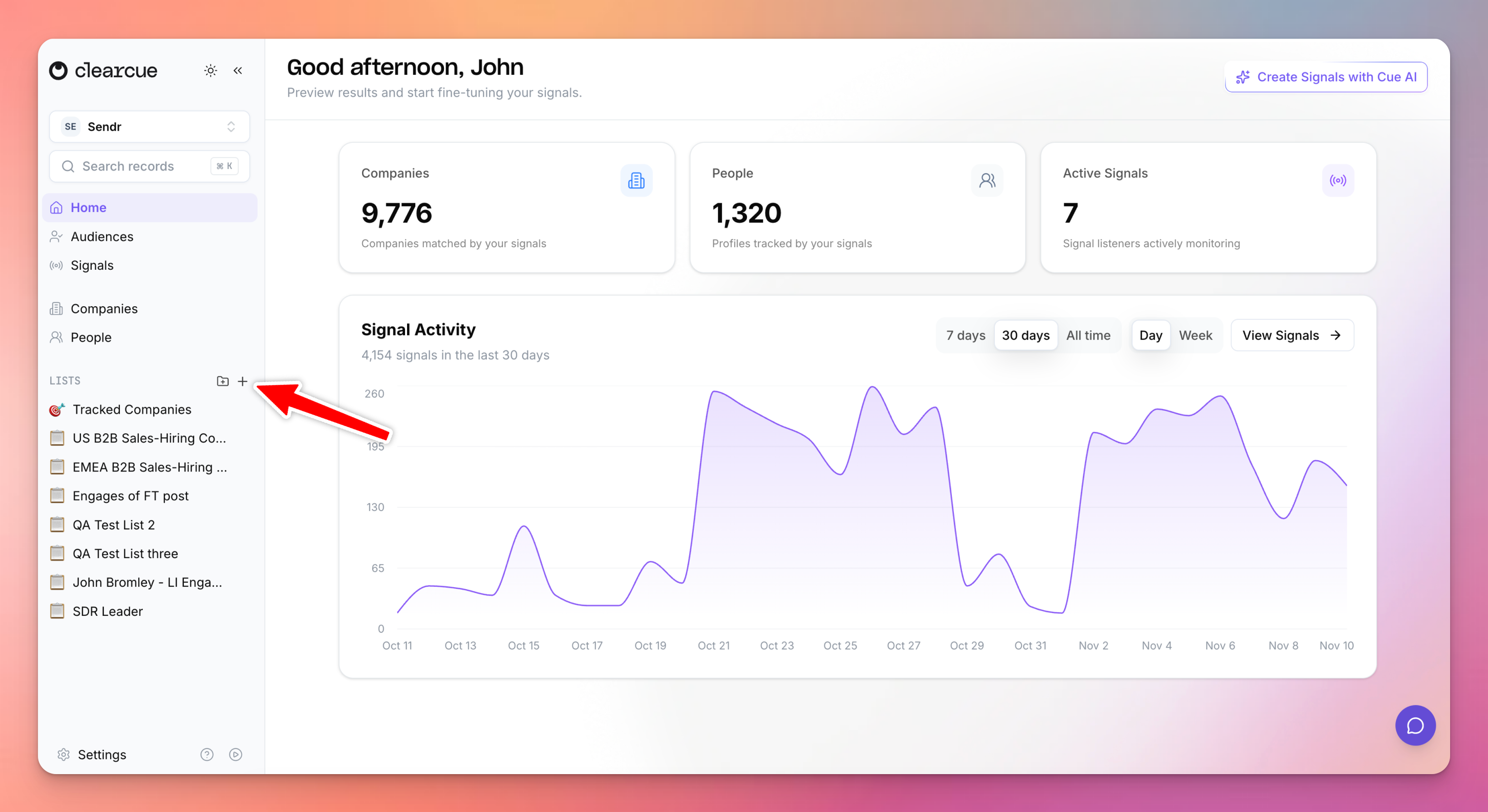
Go to Lists and create a new list. Give it a clear name, for example "LinkedIn post engagers".
Add your signal as a filter, so anyone who triggers it is added to the list.
Add filters for the people you actually want to contact, such as Position (for example "Owner" or "VP Sales") or Country.
Check the People tab to see who currently matches.
Save the list.
Step 4: Connect the Sendr webhook to your list
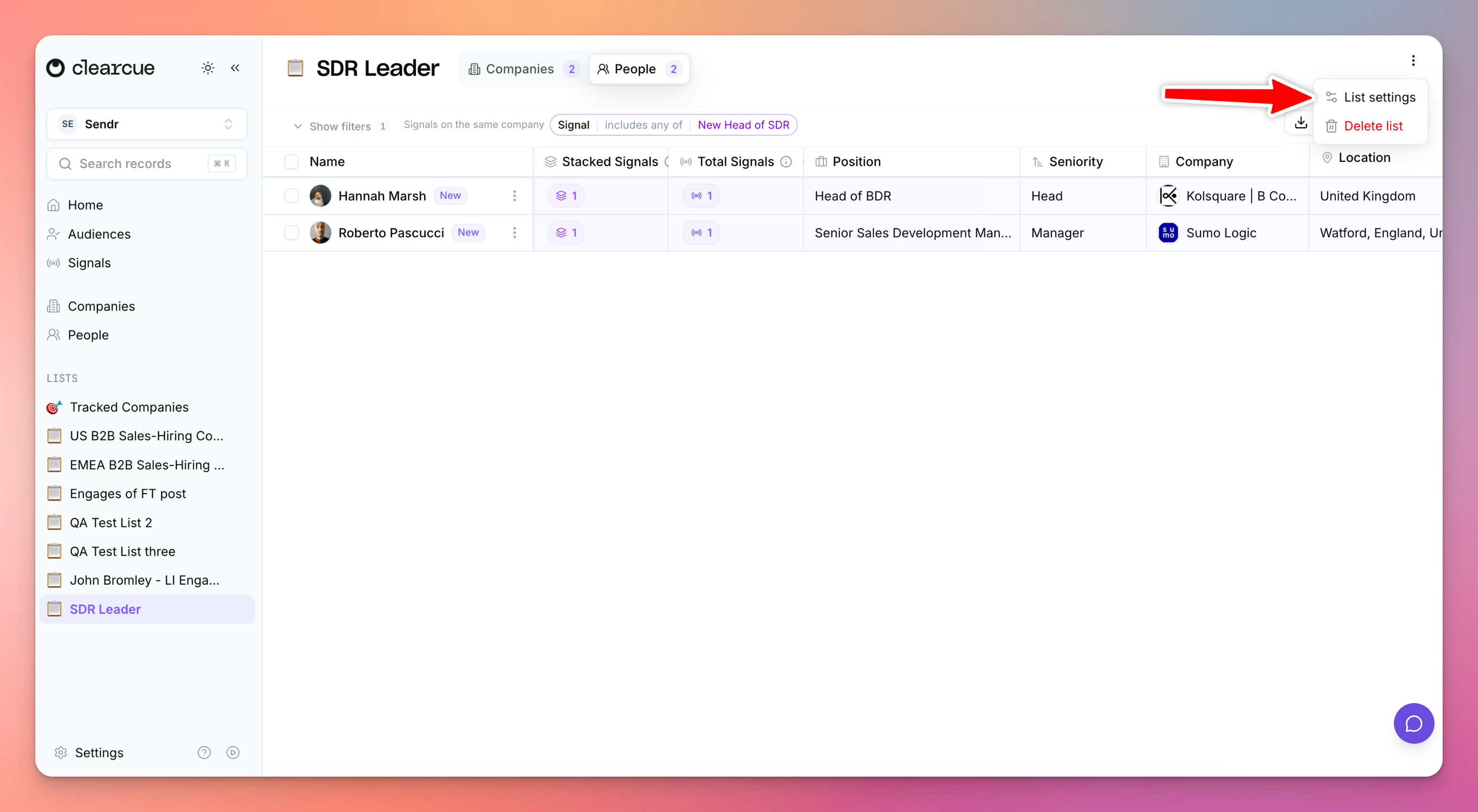
Open your list in Clearcue and click ··· (top right).
Select List settings → Sendr → Configure Sendr Webhook.
Paste the Sendr webhook URL you copied in Step 1.
Save.
Step 5: Launch your campaign
Make your Sendr campaign live so contacts can start entering the sequence.
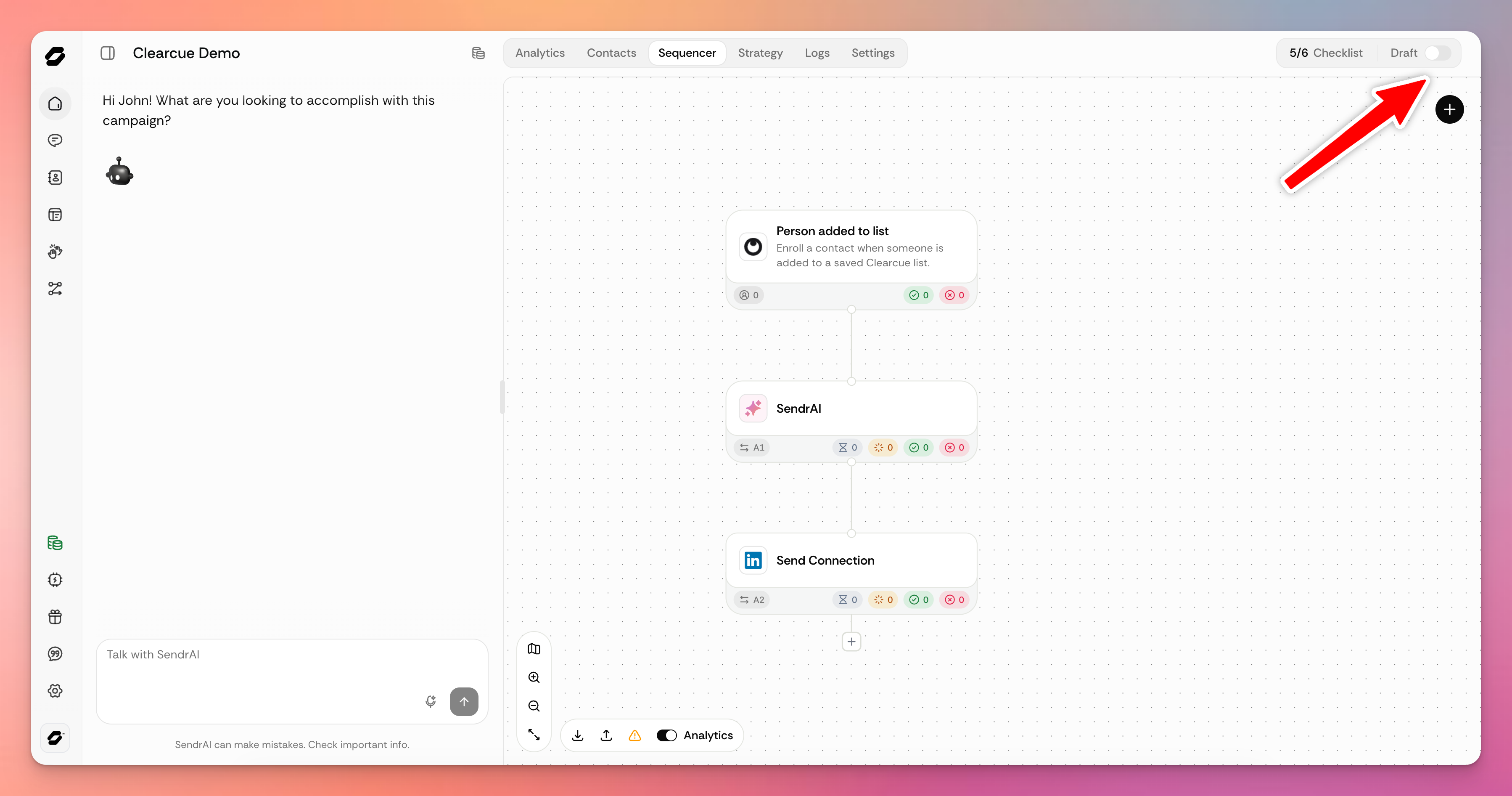
Clearcue will then send new people added to your List into Sendr. You can't see exactly when the next signal run will happen, but Clearcue run most their signals daily.
Need more help with Clearcue? [email protected]
Was this helpful?
Still need help? Ask the team